Stream break visualizer
A BRB screen that moves with your music
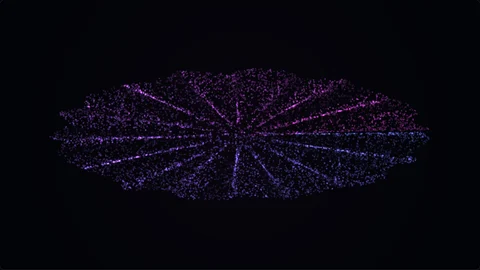
Instead of a static "be right back" image, show visuals that react to your break music. PulseKani runs in a browser window that OBS can capture, with no watermark and no account.
How it fits into OBS
Play your break music in PulseKani from a file, or let it listen to your music through an audio interface or virtual audio cable. Click Pop-out view to open the visuals with no controls, then add that window to your BRB scene in OBS with Window Capture.
OBS's Browser Source cannot open the browser's audio and microphone pickers, which is why Window Capture is the reliable route.
Keep it easy on your PC
Set Quality to low in the settings to reduce graphics work while you are streaming. Simpler scenes such as Spectrum Bars and Oscilloscope are the lightest.
How to set it up
- 1. Load your break music
Drop a music file into PulseKani, or pick the input that carries your stream music.
- 2. Open the pop-out view
Click Pop-out view and size the window to match your canvas, for example 1920×1080.
- 3. Capture it in OBS
In your BRB scene, add a Window Capture source and select the PulseKani pop-out window.
Frequently asked questions
Can the visuals have a transparent background?
No. For overlays, choose a dark scene and use OBS's Luma Key filter to drop the dark areas.
Is the demo track safe to use on stream?
Use music you have the rights to stream. PulseKani only creates the visuals.